---
title: User management
description: View and manage user details, edit information, and perform actions in the user dashboard.
sidebar:
order: 3
---
## Overview
With the user management dashboard you can view the list of users and their details.
You can also perform different operations on these users as mentioned below.
---
## Create users
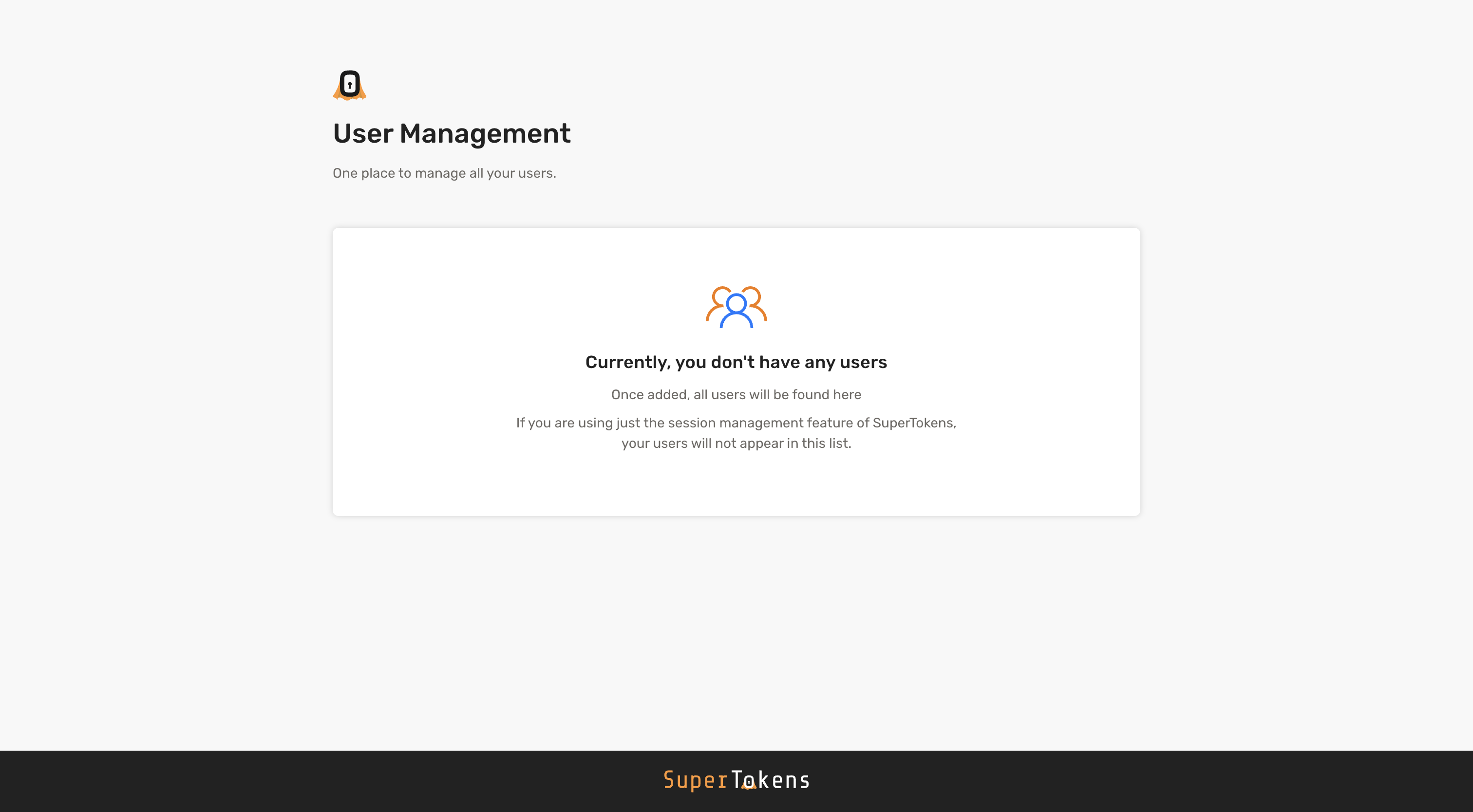
If you have created your app, you may not have any users to show on the dashboard.
 ## List users
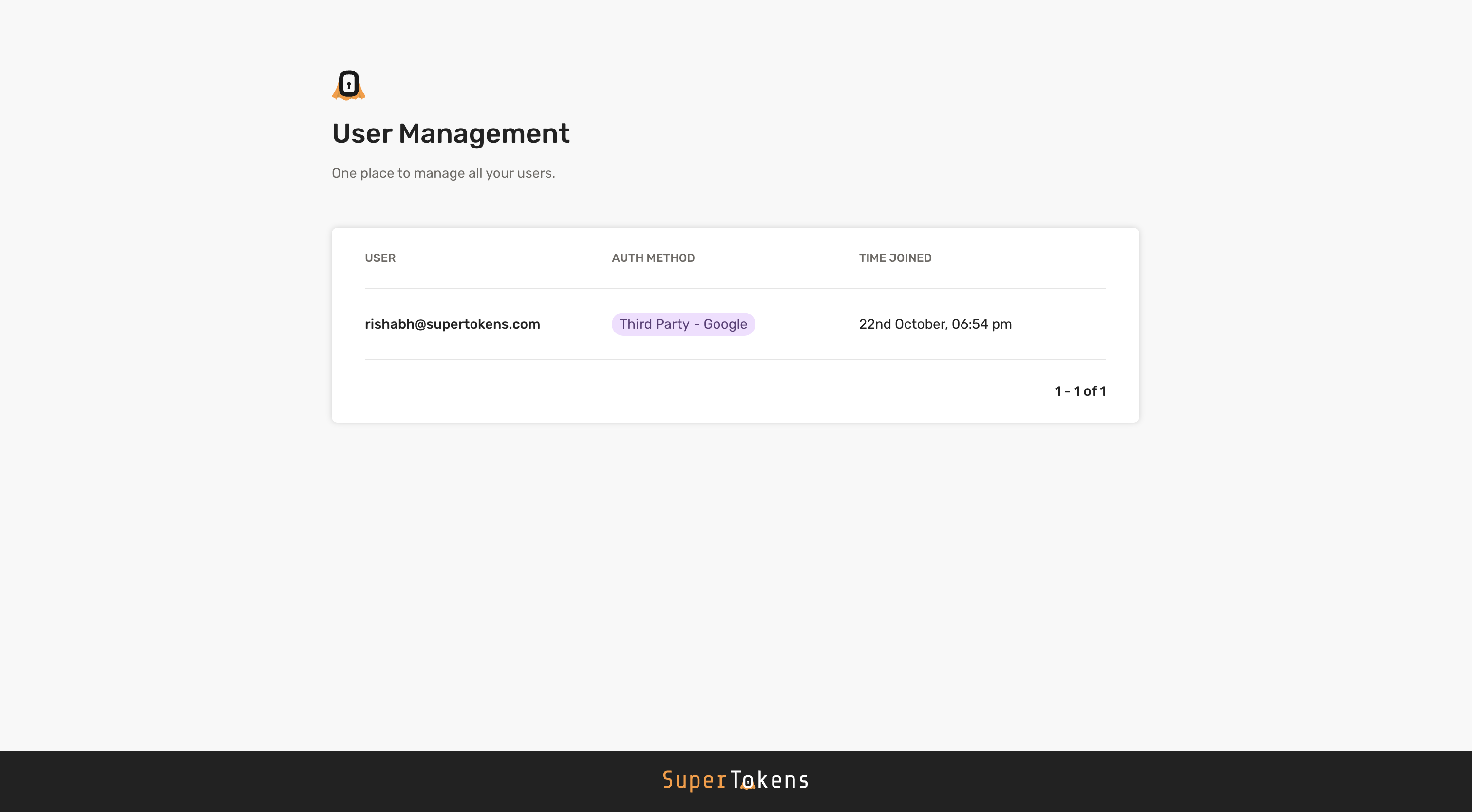
Navigate to your frontend app and create a user (via the sign-up flow). On creation, if you head back to the dashboard and refresh the page, you see that user:
## List users
Navigate to your frontend app and create a user (via the sign-up flow). On creation, if you head back to the dashboard and refresh the page, you see that user:
 ---
## View user details
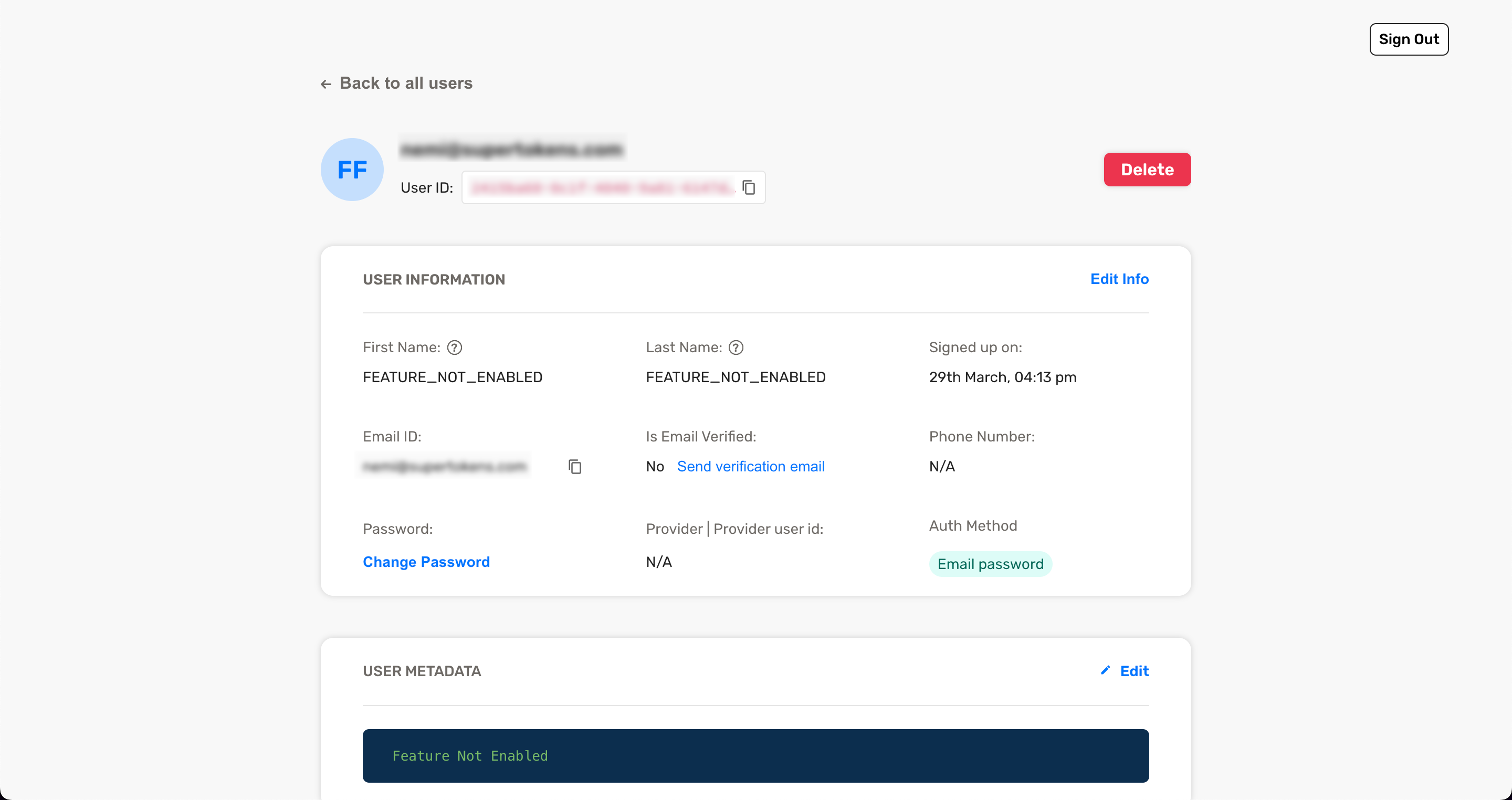
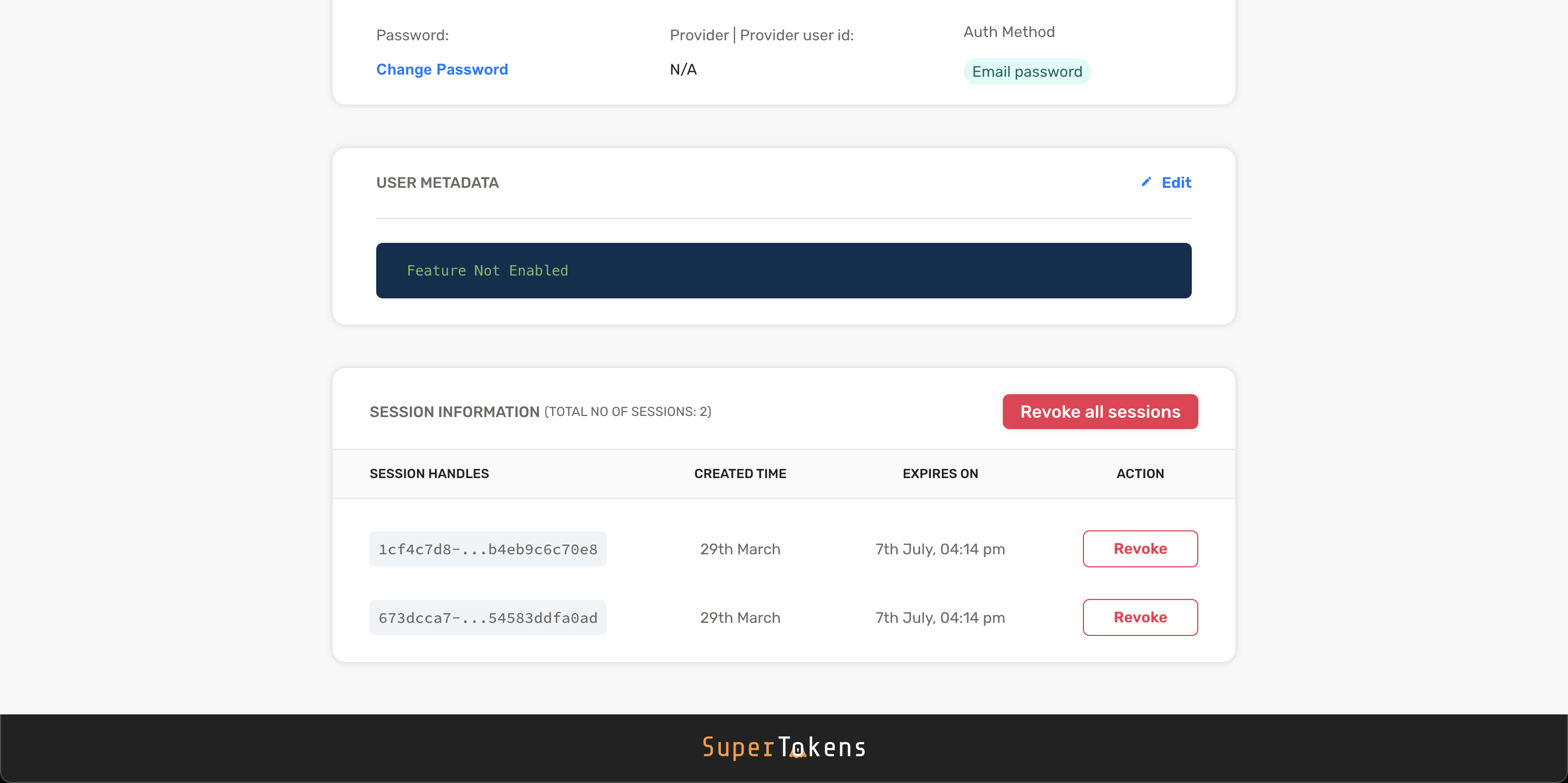
When you select a user you can view detailed information about the user such as email, phone number, user metadata, etc.
---
## View user details
When you select a user you can view detailed information about the user such as email, phone number, user metadata, etc.
 ---
## Edit user details
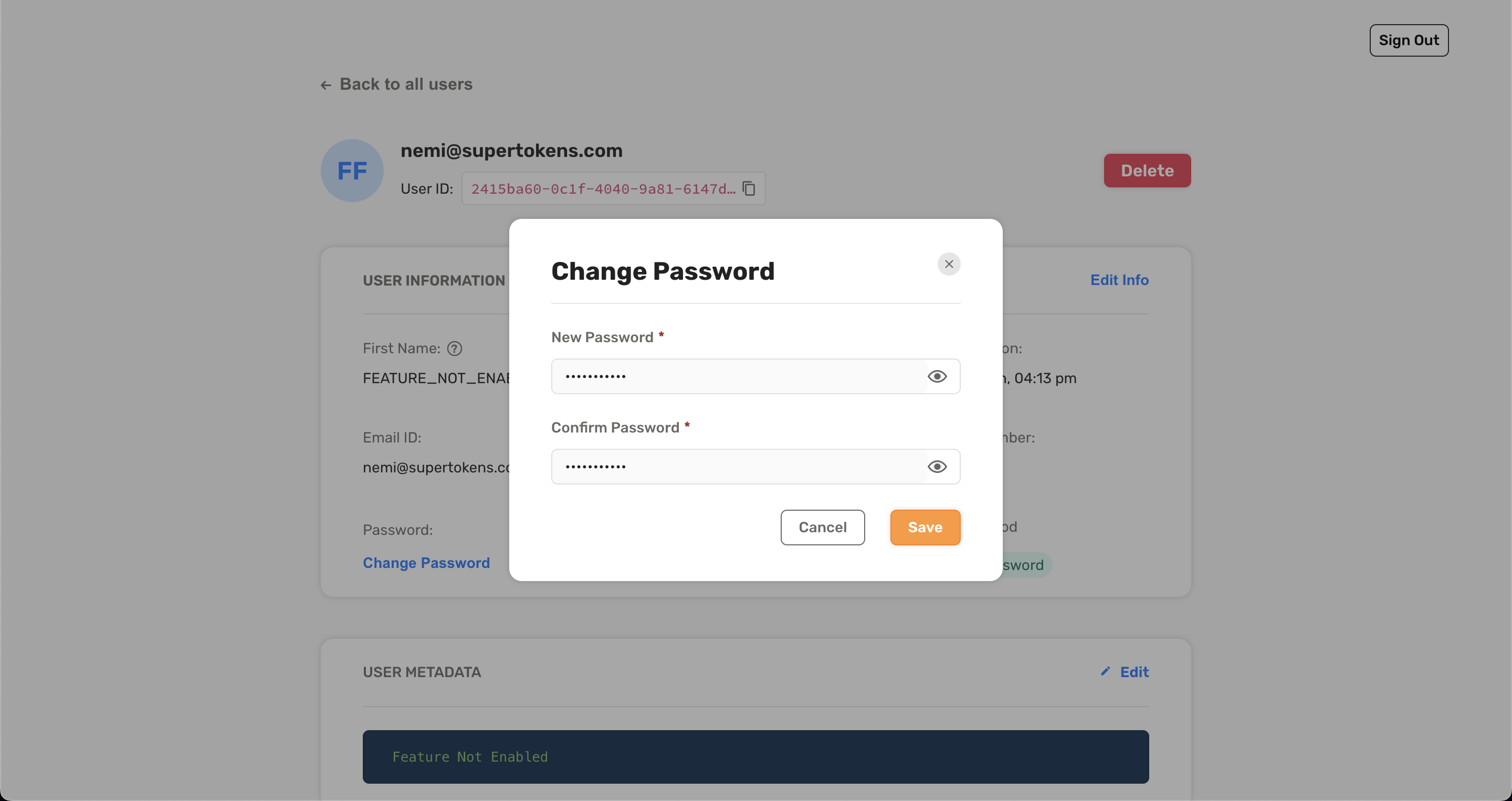
You can edit user information and perform actions such as resetting a user's password or revoking sessions for a user.
---
## Edit user details
You can edit user information and perform actions such as resetting a user's password or revoking sessions for a user.
 :::info[Note]
Enable some features such as user metadata and email verification in your backend before you can use them in the user management dashboard.
:::
---
## Create user roles and permissions
:::warning
This feature is only available through the Node.js SDK.
:::
When you first use the `UserRoles` recipe, the list of roles is empty. To create roles, click on the "Add Role" button.
:::info[Note]
Enable some features such as user metadata and email verification in your backend before you can use them in the user management dashboard.
:::
---
## Create user roles and permissions
:::warning
This feature is only available through the Node.js SDK.
:::
When you first use the `UserRoles` recipe, the list of roles is empty. To create roles, click on the "Add Role" button.
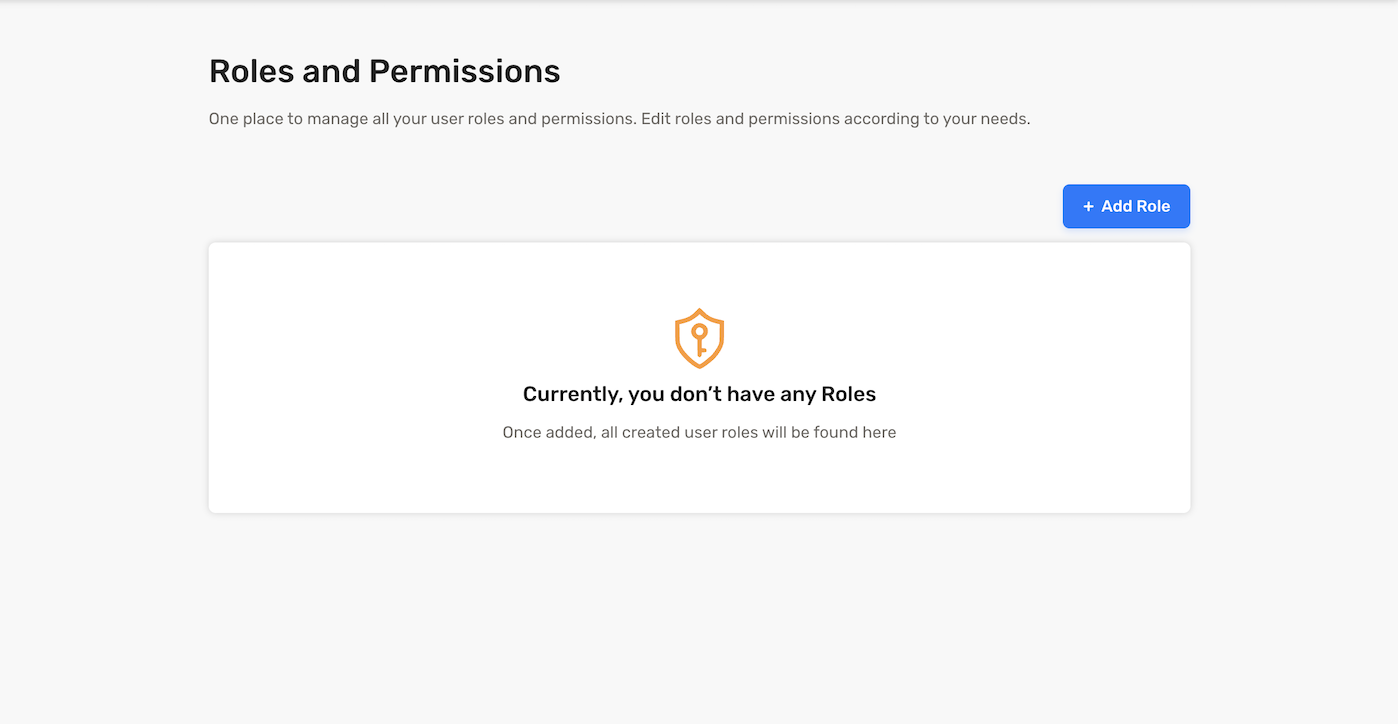 This action opens a modal, enabling you to create a role along with its associated permissions. Permissions are essentially a list of strings assigned to a specific role.
---
## List user roles
:::warning
This feature is only available through the Node.js SDK.
:::
This action opens a modal, enabling you to create a role along with its associated permissions. Permissions are essentially a list of strings assigned to a specific role.
---
## List user roles
:::warning
This feature is only available through the Node.js SDK.
:::
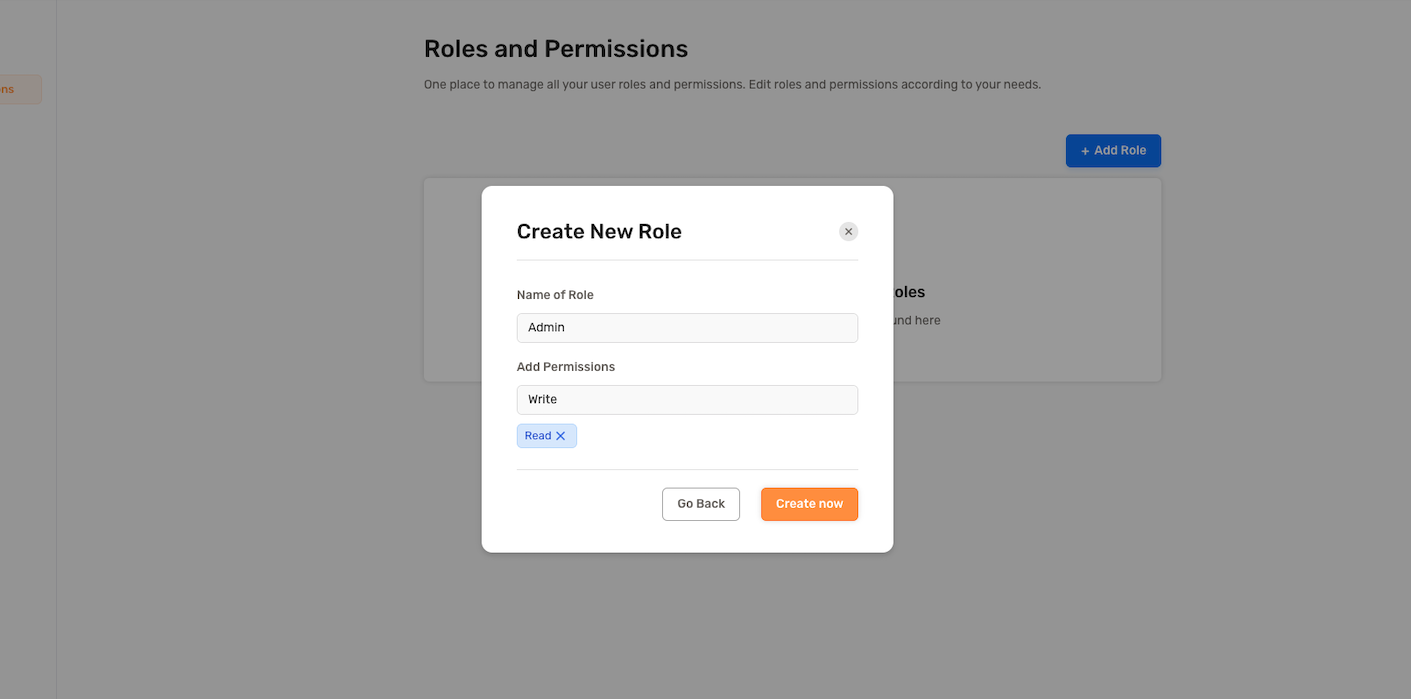 After creating a role, the UI should display a list of all roles in your app.
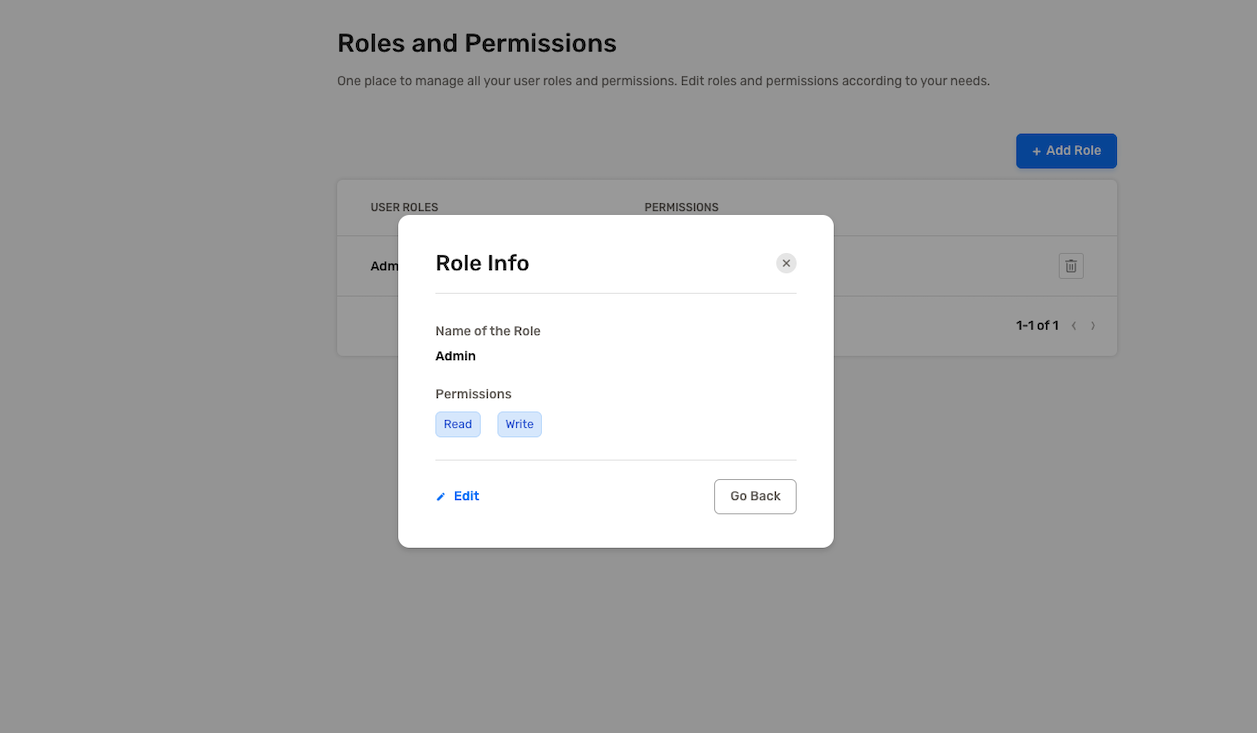
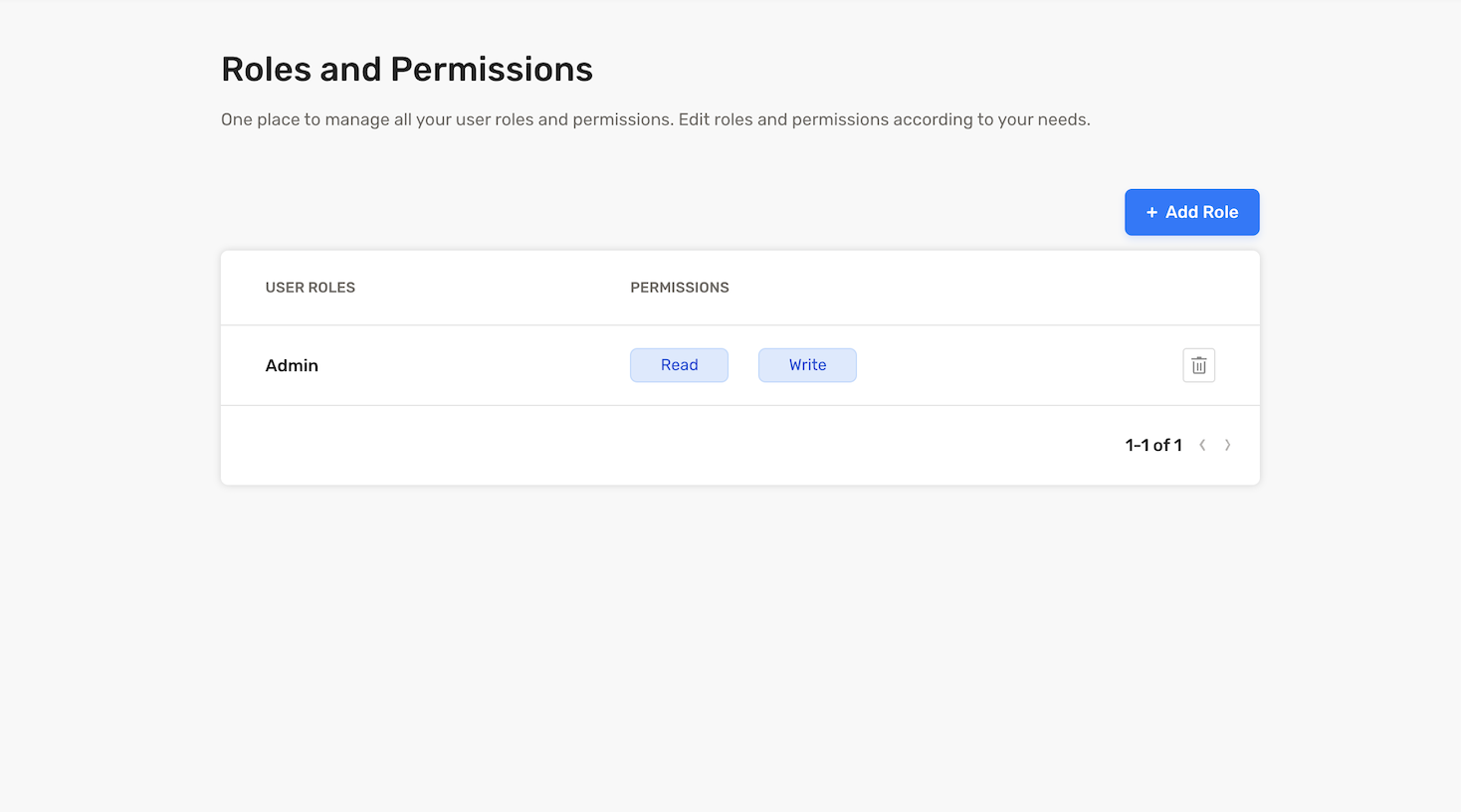 You can preview the role you created by clicking on the role row. The modal provides options to edit or delete the role.
 ---
## Assign user roles
:::warning
This feature is only available through the Node.js SDK.
:::
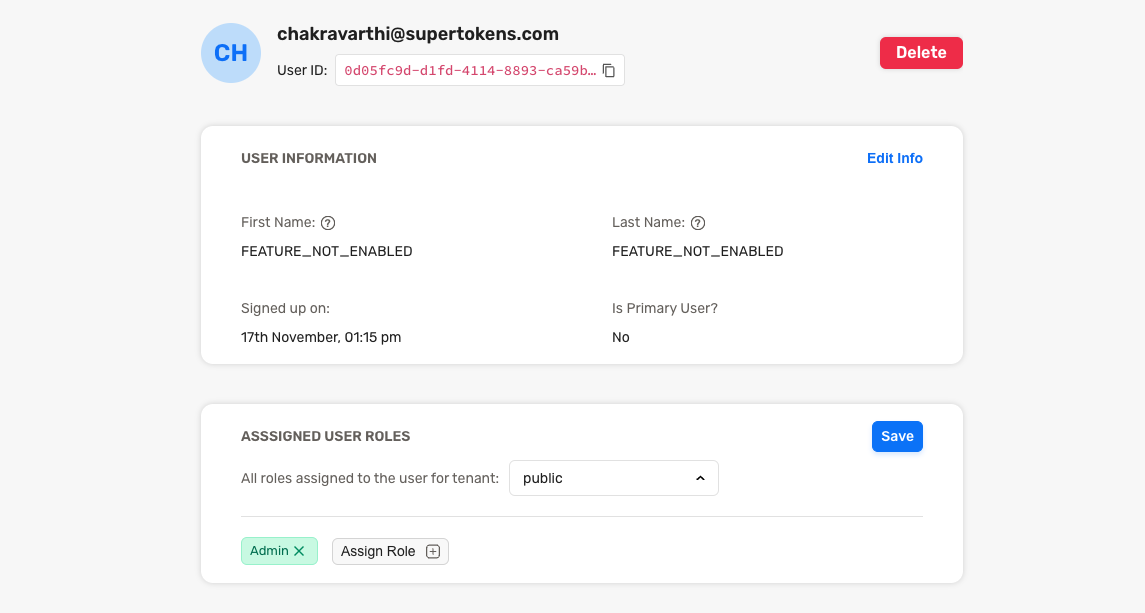
To assign a specific role to a user, start by finding the user in the dashboard. Upon clicking the user, navigate to the user details page where you find a section for user roles.
If the selected user has associations with multiple tenants, you can choose a `tenantId` from the dropdown menu to specify the tenant for which you'd like to assign roles.
---
## Assign user roles
:::warning
This feature is only available through the Node.js SDK.
:::
To assign a specific role to a user, start by finding the user in the dashboard. Upon clicking the user, navigate to the user details page where you find a section for user roles.
If the selected user has associations with multiple tenants, you can choose a `tenantId` from the dropdown menu to specify the tenant for which you'd like to assign roles.
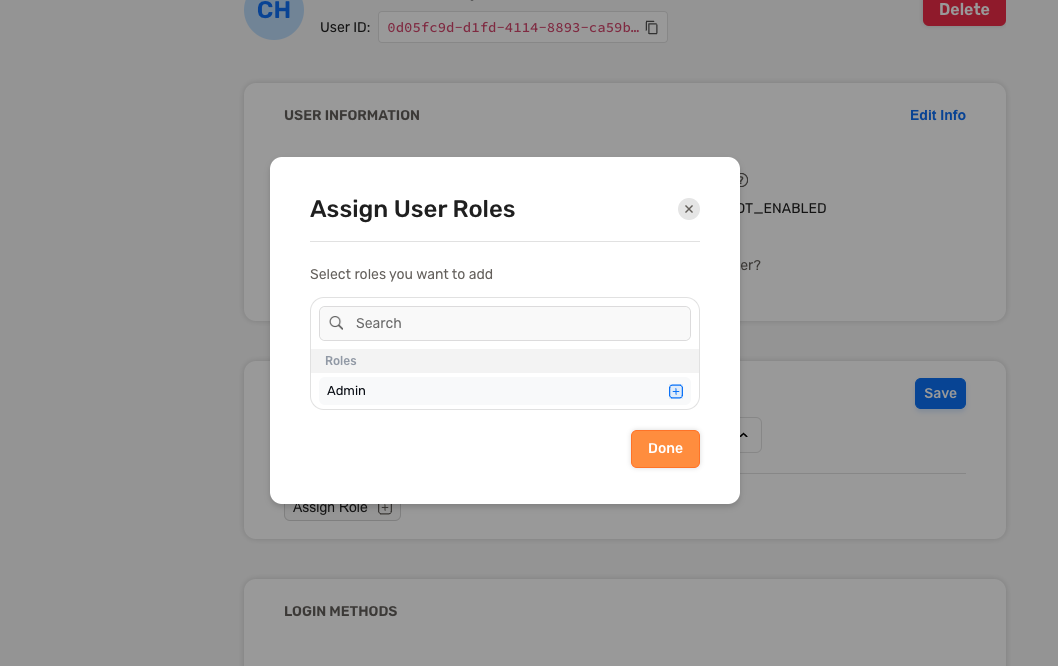
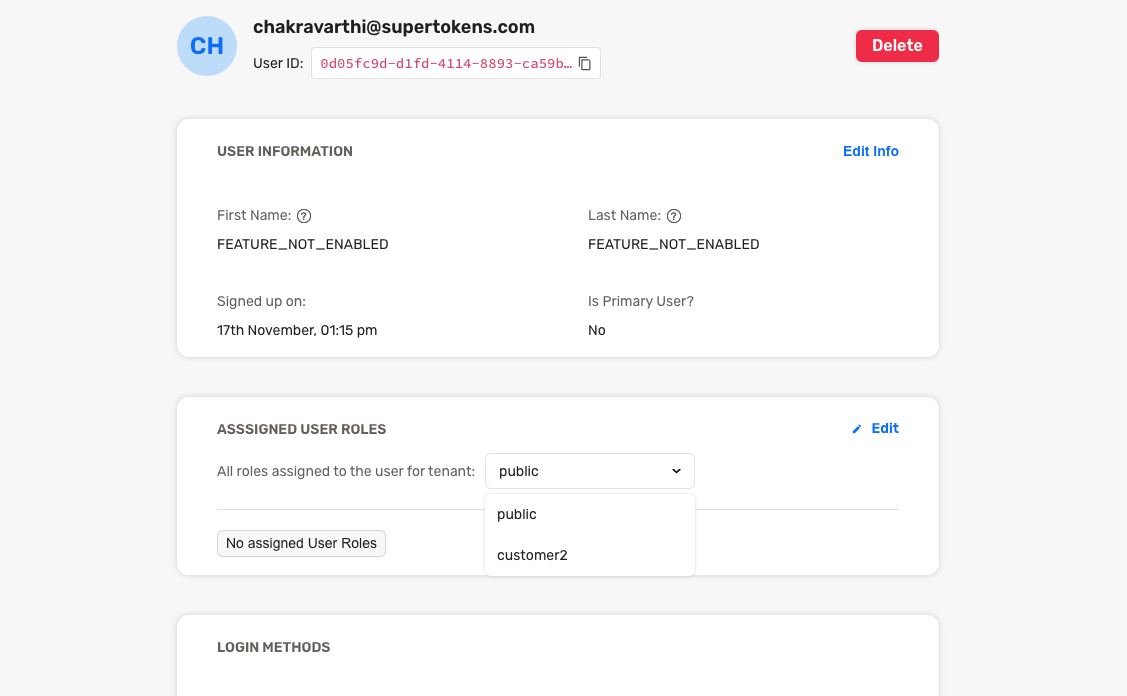 Click the edit button to start assigning roles. Then, select the "Assign Role" button, and a modal appears with a list of available roles for assignment to this user.
 ---
## Remove user roles
:::warning
This feature is only available through the Node.js SDK.
:::
To remove a role assigned to a user, click on the "X" icon next to that specific role.
---
## Remove user roles
:::warning
This feature is only available through the Node.js SDK.
:::
To remove a role assigned to a user, click on the "X" icon next to that specific role.